Roblox Parental Controls: A Parent's Setup Guide (2026)
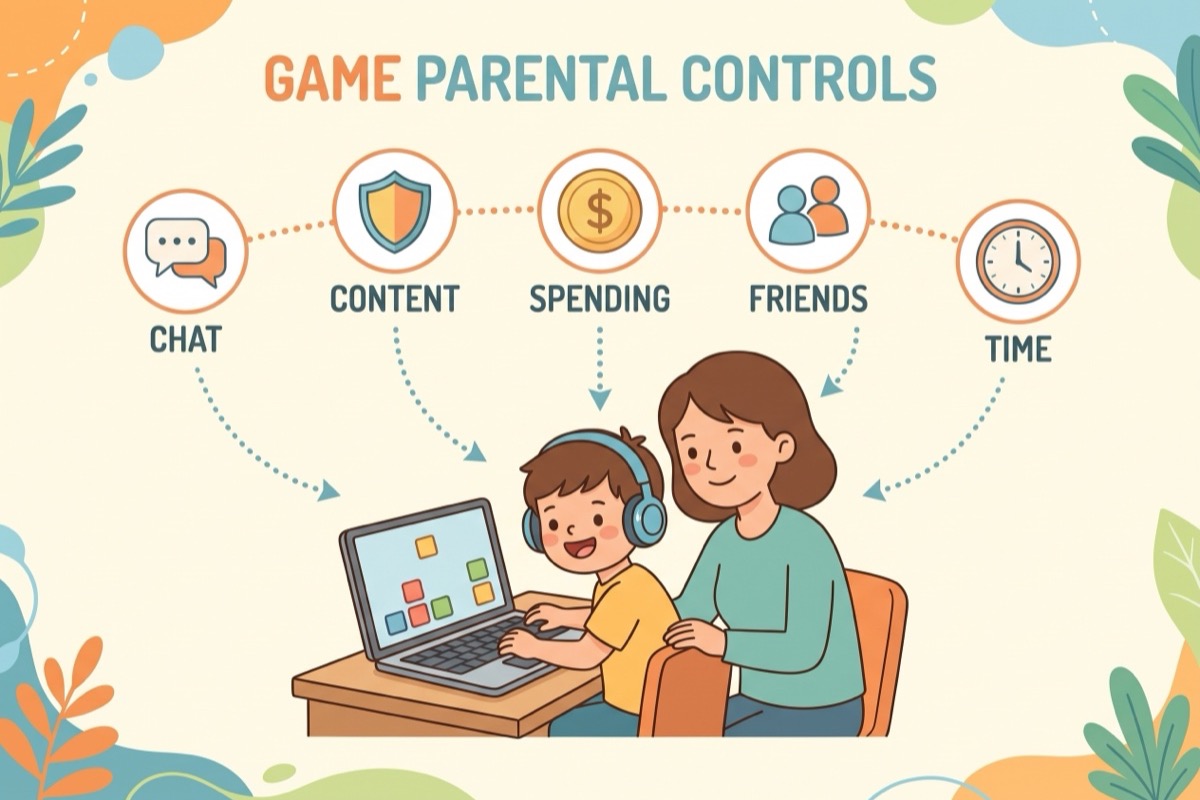
Your child wants Roblox, or already lives on it, and you have never played a single game. That is fine. Roblox parental controls have changed a lot since 2024, and the setup is shorter than it looks. You link your account from your child's Settings (Parental controls, then Add parent). After that, almost every control sits under Settings > Parental Controls on your own account. You do not need to understand the games. You need one quiet evening and your kid next to you.
This guide goes in the order that matters: linking accounts, content maturity, chat and voice, the new age check, friends, spending, and screen time. Then a table of what to switch on at each age, the gaps kids find, and the family agreement that does the part no setting can. If your child plays mostly on a phone or tablet, pair this with our iPhone parental controls setup or the Android screen time guide.
Before You Start
Three things save you a frustrating half hour.
- Your own Roblox account. Linking connects two accounts, yours and your child's. If you do not have one, you can create it during the linking step. Linking also requires identity verification, by government-issued ID or credit card.
- Your child's device, and your child. The link starts from their account, not yours. Doing it together also means nobody feels ambushed later.
- An honest age on the account. Roblox builds its defaults around age, and the controls only reach as far as the account is honestly set up. Common Sense Media's guide to Roblox recommends exactly this: make sure a younger child's account is set as under 13 so the safety defaults apply.
It also helps to know which account type your child has. Roblox announced two age-based accounts for under-16s, rolling out from early June 2026: Roblox Kids for ages 5–8 and Roblox Select for ages 9–15. Each comes with its own content, chat, and spending defaults, and accounts move up automatically at 9 and 16 based on age-verification data. When an age-triggered change is coming, Roblox gives parents and children 30 days' notice.
Finding Settings: on a computer, it is the gear icon at the top right. On a phone or tablet, tap More at the bottom right, then the Settings gear icon. That works the same on your account and your child's. Menu names below are current as of September 2026. Roblox does rename things (Trusted Connections became Trusted Friends in April 2026), so if a label on your screen is slightly different, look for the nearest match.
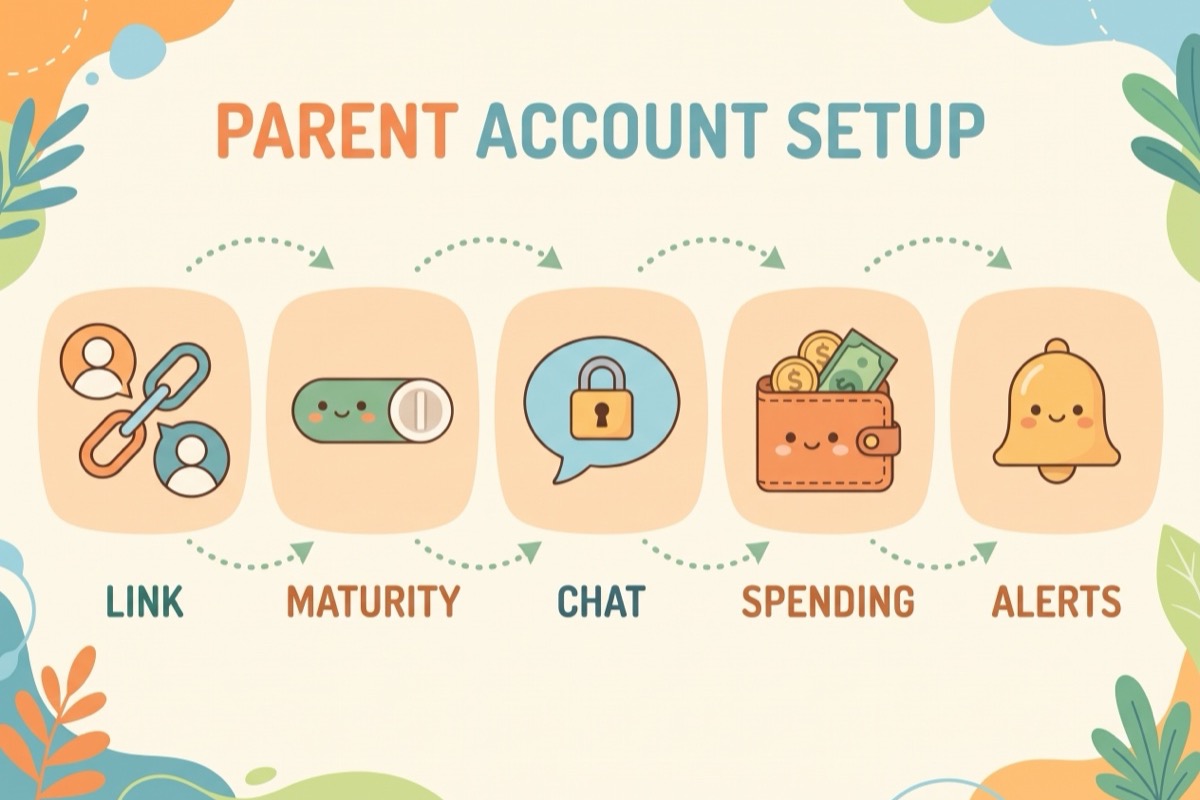
Step 1: Link Your Account to Your Child's
Linking turns you from a bystander into the person who holds the settings. According to Roblox's own parental controls page, in most regions a linked parent manages a child's settings until age 12. Game blocking and Direct Chat stay yours up to age 15.
- On your child's device, open Settings.
- Tap Parental controls, then Add parent.
- Enter your email address.
- Open the confirmation email Roblox sends you and follow the link. Log in to your own account, or create one.
- Click Agree when asked to link to your child's account.
Step 2: Find the Roblox Parental Controls on Your Account
Once linked, you manage the parental controls Roblox gives you from your own account, not your child's.
- On your account, open Settings, then Parental Controls.
- Select your child.
- Open Settings you manage. It has three sections: Content restrictions, Communication, and Spending restrictions.
Roblox asks for a Parent PIN before any parental-control setting can be changed, which keeps a child from switching the controls off themselves. Store it somewhere they will not find it. If you ever need to undo the link: Settings > Parental Controls, select the child, tap the pencil icon, then Unlink accounts.
Step 3: Set Content Maturity
If you remember Roblox games tagged 9+ or 13+, that system is gone. Old screenshots with those age badges describe it. Today every experience carries one of four content maturity labels, which Roblox defines in its Creator Hub documentation: Minimal, Mild, Moderate, and Restricted. Minimal and Mild are open to Roblox Kids and Roblox Select accounts. Moderate is open to Roblox Select and standard 16+ accounts. Restricted is only for age-verified users 18 and older.
- In Settings you manage, open Content restrictions.
- Under Content maturity, drag the slider to the level you are comfortable with.
- Check the Sensitive Issues toggle. It covers experiences built around social, political, or religious topics, and it is restricted by default for accounts under 13.
- If one particular game is the problem, block it from the same Content restrictions area.
The Creator Hub page spells out what each label allows. Read it once before you move the slider past Mild; it saves a lot of guessing. Roblox has also announced plans to eventually replace its own labels with regional ratings, such as ESRB in the US, so the names may change after this guide's date. Some limits apply regardless of the slider. Since November 2024, Roblox has restricted under-13 access to experiences built around largely unsupervised socializing with strangers, and to free-form creation spaces like open drawing boards.
Step 4: Roblox Chat Settings for Kids (Text and Voice)
Chat is where most parents' worry lives, and it is also where Roblox has changed the most.
- In Settings you manage, open Communication.
- Set Experience Chat, the text chat inside games.
- Set Direct Chat, the one-on-one messaging. You can manage this one up to age 15.
- Decide on Voice Chat with Friends. It is off by default for accounts under 13.
A lot is already locked down before you touch anything. Since November 18, 2024, users under 13 cannot send direct messages to anyone outside of games. By default, their in-game chat is limited to pre-set, broadcast-style messages rather than free text. Chat with Friends becomes available at 9, and from 9 to 12 it works only with Trusted Friends, not with every friend on the list. If you switch voice on for a 9-to-12-year-old, it is limited to Trusted Friends too.
Our take: under 9, leave chat where Roblox sets it. From 9 to 12, text chat with Trusted Friends is a reasonable place to start, and voice can wait until you know who those friends are. Common Sense Media lands in the same spot and recommends restricting chat to friends only.
Step 5: Do the Age Check (Chat Stays Locked Without It)
This is the step many older guides miss. Since the first week of December 2025, Roblox requires an age check before an account can use chat at all. It began in Australia, New Zealand, and the Netherlands, with the global rollout targeted for early January 2026. Your child can still play without it. Chat and related features simply stay locked until it is done, whatever you set in Step 4.
- On your child's account, open Settings, then Account Info.
- Select Age Group.
- Choose Continue with selfie to use Facial Age Estimation. Roblox also accepts ID verification instead.
The scan uses the device camera. According to Roblox's age estimation page, the images are processed by its vendor, Persona, and deleted immediately afterward, and Roblox says it does not sell this image data. The UK's Age Check Certification Scheme tested the model and measured an average error of 1.4 years for under-18s.
The result places the account in one of six age bands: under 9, 9–12, 13–15, 16–17, 18–20, and 21+. Those bands decide who can chat with whom. Roblox's own example: a verified 16-year-old cannot start or continue a chat with a 12-year-old. If a face scan makes you hesitate, that is a reasonable reaction. For scale: by March 31, 2026, 65% of Roblox's US daily users had completed an age check.
Step 6: Approve Friends and Trusted Friends
Friends matter because so many of the chat rules above depend on who counts as a Trusted Friend.
- Review connections. In the Connections area of Parental Controls you can see who your child is connected to, and block or report anyone.
- Answer friend requests. For a linked account under 13, new friend requests wait for you. You have 24 hours to approve or deny.
- Approve Trusted Friends. A Trusted Friend request for an under-13 account has to be approved by you in Parental Controls. If the other child is also under 13, their parent has to approve it as well.
Some guides still get this part wrong. In its April 2026 update, Roblox says chat between Trusted Friends stays filtered and keeps blocking profanity, photos, videos, and personal information. The label does not by itself open up voice chat or unfiltered text for an under-13 account. Our rule of thumb: Trusted Friends are kids you have met in real life, or whose parents you can text.
Step 7: Set Roblox Spending Limits and Alerts
Robux, the in-game currency, cost real money. The spending controls are simple.
- In Settings you manage, open Spending restrictions.
- Set a monthly spending limit.
- Leave the high-spend notifications on.
The monthly limit resets each calendar month, and the unused part does not roll over. High-spend alerts are on by default for linked parents and arrive after $100, $250, and $500 of spending in a calendar month. Robux transfers to other users need your approval and are capped at 500 Robux a day and 1,000 a month, which makes sending Robux to a friend a family decision.
The one gap to know about: the monthly limit does not apply to gift-card redemption. More on that below.
Step 8: Set a Daily Screen Time Limit
Roblox has its own daily cap, available for Roblox Kids accounts and for ages 9–12 on Roblox Select. It lives in the Screen time section of Parental Controls on your account, where you set the daily limit. Once your child reaches it, they see a message and are locked out of Roblox until the next day. No negotiation with you required, which is the best part.
Two limits of the limit. It only counts Roblox, not whatever they open next. And it does not cover 13-to-15-year-olds, so for a teen, a device-wide limit on the phone or tablet does that job. For how much time is reasonable at each age, see recommended screen time by age.
What to Switch On at Each Age
Roblox does a good share of this by age already. The table shows what it sets by default and what is still your job. Where the right column says "your call," that is our suggestion, not Roblox's.
| Age | Account type | Roblox already sets | You switch on or check |
|---|---|---|---|
| 5–8 | Roblox Kids | Minimal and Mild content only; no Chat with Friends yet; no direct messages outside games | Link your account, daily screen time limit, monthly spending limit, answer friend requests within 24 hours |
| 9–12 | Roblox Select | Chat with Friends limited to Trusted Friends; voice off; Sensitive Issues restricted; friend requests wait for you | Age check with your child, content maturity slider (your call), approve Trusted Friends, screen time limit, spending limit |
| 13–15 | Roblox Select | Who they can chat with is set by age band; in most regions, parent management of other settings ends at 12 | Game blocking and Direct Chat stay yours up to age 15; a device-wide time limit; a spending agreement |
| 16+ | Standard account | Moderate content eligible; Restricted only for age-verified 18+ | The conversation, not the settings. Keep talking about who they play with and what they spend |
What Kids Work Around, and How to Close It
No setting is airtight, and kids are patient researchers. These are the known gaps.
- Gift cards. The monthly spending limit does not apply to gift-card redemption, so a gift card can go straight past it. Close it with a family rule (gift-card Robux count toward the monthly amount) and a quiet word with generous relatives.
- A wrong birthday on the account. The defaults depend on age, so an account set up as older gets fewer protections. Check the age on the account when you link it, and do the age check together.
- Changing the settings back. This is what the Parent PIN is for. Keep it to yourself, and do not type it in while someone is reading over your shoulder.
- "Trusted Friends means we can talk freely." It does not. Chat stays filtered either way, and voice for under-13s is still your decision.
- Older players in shared spaces. Common Sense Media notes that a child's account can still end up interacting with much older players in some spaces. The age bands and content labels reduce this; they do not end it. Sit in on a session now and then, and ask who they played with.
- Time outside the Roblox cap. The cap ends at the edge of the app, and 13-to-15-year-olds have none. Device-level limits from the phone and tablet guides above cover both.
Settings Are Not the Whole Answer
The American Academy of Pediatrics' latest media recommendations put the burden in two places. Platforms should make safety the default, including turning chat off by default. Families should build a Family Media Plan around the "5 Cs of Media Use" instead of leaning on one blanket screen-time number. Roblox has moved toward the first. The second is yours.
For Roblox, a family agreement can fit on one page. Keep it short enough that a 9-year-old can recite it:
- When and how long. The same number you typed into the screen time setting, so the rule and the lockout agree.
- Who we play with. Friends you have approved. New Trusted Friends get talked about first.
- What we never share. Full name, school, address, photos. The filter blocks a lot of it; the habit covers the rest.
- What to do when something feels off. Tell a parent, and the game does not get taken away for telling. That promise is the whole system. Break it once and the reporting stops.
- Money. The monthly amount, and what happens with gift cards.
Rules work better when they are visible. A printed chart next to the console or on the fridge settles the "but you never said that" argument before it starts. Family Checklist builds one in a couple of minutes. If the fights are less about rules and more about a child who cannot stop, our guide to screen addiction in kids covers the signs and what helps.
Key Takeaways
- Link your account first. Most controls then live under Settings > Parental Controls on your side.
- Chat needs an age check. Since the December 2025 to January 2026 rollout, no account can chat until it passes one.
- Under 13, a lot is locked by default. No direct messages outside games, voice off, chat with Trusted Friends only from 9 to 12.
- Trusted Friends need your approval for under-13s, and chat between them stays filtered.
- Spending limits reset monthly and ignore gift cards. Keep the $100, $250, and $500 alerts on and make a gift-card rule.
- Parent control narrows at 13; the conversation does not. Write the family agreement down while your child still wants to play by it.
Frequently Asked Questions
How do I set parental controls on Roblox?
Start on your child's device: Settings, then Parental controls, then Add parent, and enter your email. Follow the link in the email Roblox sends you and click Agree to link the accounts. After that, manage everything from your own account under Settings, Parental Controls, your child's name, and Settings you manage, which covers content, communication, and spending.
Are Roblox parental controls enough on their own?
They cover a lot: content maturity, chat and voice, friend approval, spending limits, and a daily cap for younger kids. They do not cover gift-card spending, time outside Roblox, or every interaction with older players in shared spaces. Pair them with device-level limits and a written family agreement.
Can my child chat with strangers on Roblox?
Much less than before. Since November 2024, under-13s cannot send direct messages outside games. Chat with Friends starts at 9 and is limited to Trusted Friends through age 12. Every account also needs an age check before chat works, and age bands keep, for example, a verified 16-year-old from chatting with a 12-year-old.
Does a Roblox spending limit stop gift cards?
No. The monthly spending limit does not apply to gift-card redemption. It resets each calendar month and does not roll over. High-spend alerts at $100, $250, and $500 a month are on by default for linked parents, and Robux transfers to other users need your approval.
What changes when my child turns 13?
In most regions, a linked parent manages most settings until 12, then keeps control of game blocking and Direct Chat up to 15. Several under-13 defaults, like the Sensitive Issues restriction and voice being off, are tied to that age. Roblox gives parents and children 30 days' notice before an age-triggered change takes effect.
Is the Roblox age check selfie safe?
Roblox says the selfie images are processed by its vendor, Persona, deleted immediately afterward, and not sold. The model was independently tested by the UK's Age Check Certification Scheme, with an average error of 1.4 years for under-18s. ID verification is the alternative if you prefer not to use the camera.
Related Reading
- How to Check Screen Time on Android and Limit It for Kids (2026)
- Parental Controls on iPhone: A 15-Minute Setup for Kids (2026)
- Screen Addiction in Kids: 9 Signs and How to Break the Loop (2026)
- Social Media Age Limits: The Main Apps, Laws and Countries (2026)
- Recommended Screen Time by Age: What the Guidelines Say (2026)
- What Age Should a Child Get a Phone? A Readiness Checklist (2026)
Turn your Roblox rules into a checklist your kids can see
Family Checklist makes a free screen rules chart: play time, who they play with, what they never share, and the money rule. Print it for the fridge or use the app. No signup required.
Make a free screen rules chart
