How to Check Screen Time on Android and Limit It for Kids (2026)
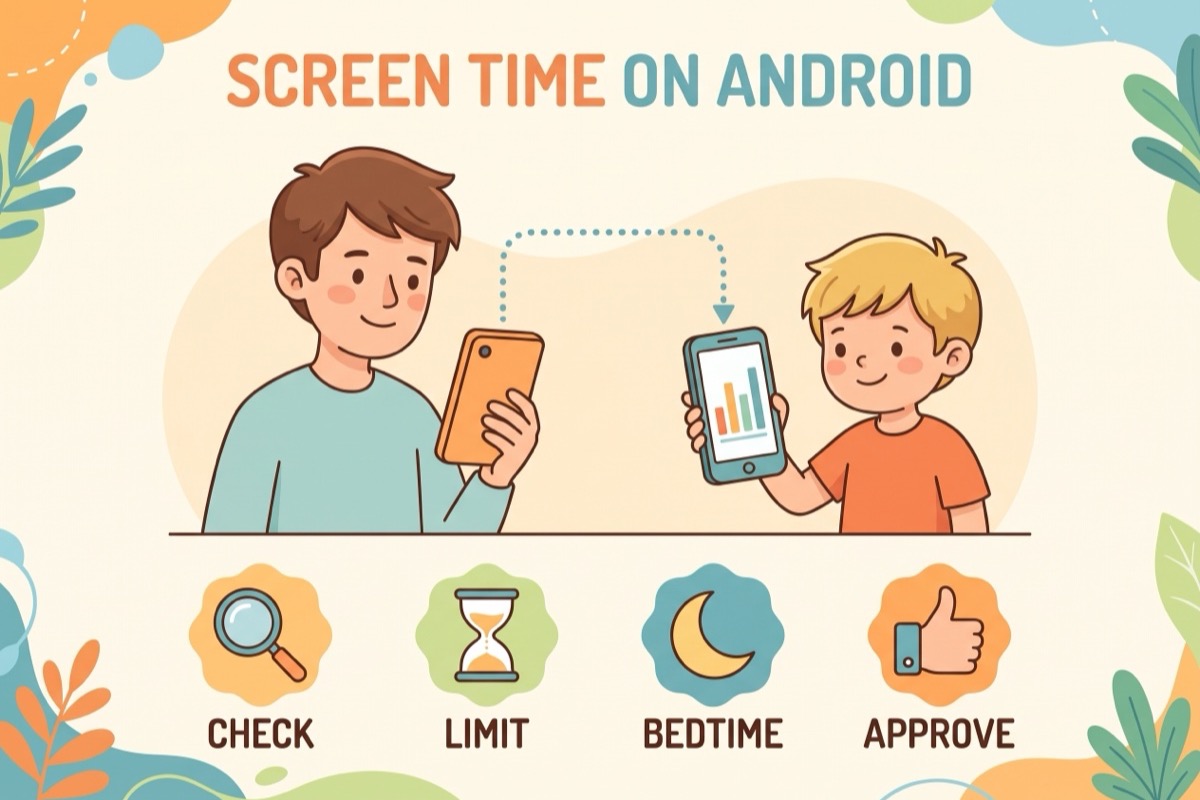
Your kid says they were on the phone "for like ten minutes." The phone may have a different number. This guide shows how to check screen time on Android in the two places that hold the real answer. Then it shows how to set limits that keep working after you leave the room.
Android splits screen time into two separate systems, and most of the confusion starts there. On your child's phone, open Settings and tap "Digital Wellbeing" to see today's usage; that view is theirs to manage. On your phone, open Google Family Link, select your child and tap "Screen time"; that is where limits are enforced. Samsung renames a menu, and less changes at 13 than most parents expect. If your family mixes Android and Apple devices, our iPhone parental controls setup covers the other half of the house.
Before You Start
First, the split, in one line each.
- Digital Wellbeing is the usage view on the child's own phone. It is self-reported and self-managed. Think of it as a mirror.
- Google Family Link is the app on your phone that sets and enforces limits remotely. Think of it as the lock.
Family Link needs a few things in place. Google's Family Link requirements page lists them:
- You: 18 or older, with a Google Account, living in the same country as your child.
- Your child's device: Android 6.0 or later, or a Chromebook on Chrome OS 71 or later. A compatible Fitbit also works.
- Not covered: iPhones, iPads and computers other than Chromebooks. Family Link is also not available in every country or region.
Two version notes on top of that. Limits on individual apps need Android 7.0 (Nougat) or later, or Chrome OS 83 or later. Samsung Galaxy phones and tablets need One UI 2.0 or later to support Family Link at all.
Setting up on a Samsung Galaxy
On a Galaxy, you can start Family Link setup from the child's phone itself:
- Open Settings on your child's Galaxy.
- Tap "Digital Wellbeing and parental controls."
- Tap "Parental controls," then "Let's do this."
- Sign in with your child's Google Account.
Samsung's own Family Link instructions cover the rest. This guide covers Pixel and Samsung. On other brands the Digital Wellbeing menu may look different, but the Family Link steps in this guide happen on your phone either way.
Two more things. Family Link changes generally reach the child's device within about 5 minutes once it is online. And Google now splits time limits, schedules and app limits into separate help pages, so an older screenshot of one combined "set screen time" flow may not match your app.
Step 1: How to Check Screen Time on Android on Your Child's Phone
Start with the view your child already has. It is the same screen they will use to check their own numbers.
Pixel or stock Android
- Open Settings.
- Tap "Digital Wellbeing." On some builds the full name is "Digital Wellbeing & parental controls."
- Read the chart: today's screen time, times opened and notifications received.
- Tap the chart for more detail.
Samsung Galaxy (One UI)
- Open Settings.
- Tap "Digital Wellbeing and parental controls." Samsung uses the longer name, not plain "Digital Wellbeing."
- Check the Apps Dashboard for the breakdown by day, hour and app.
Digital Wellbeing also has App timers: tap the timer icon next to an app to set one. Timers reset at midnight, and when the time runs out the app closes and its icon dims. The Android Digital Wellbeing help page has the details. On Pixel phones the same menu adds two more tools. Focus mode pauses chosen apps on demand or on a schedule. Bedtime mode runs on a schedule or while the phone charges.
Here is the catch. This view belongs to your child. On Android 15 and later, a child on a supervised account can use some Digital Wellbeing tools directly, such as Focus mode, Flip to Shhh and Heads Up. These work separately from anything you set in Family Link. That is useful for a kid who wants to manage their own attention. It is not a parental control. For limits that hold, you need Step 2.
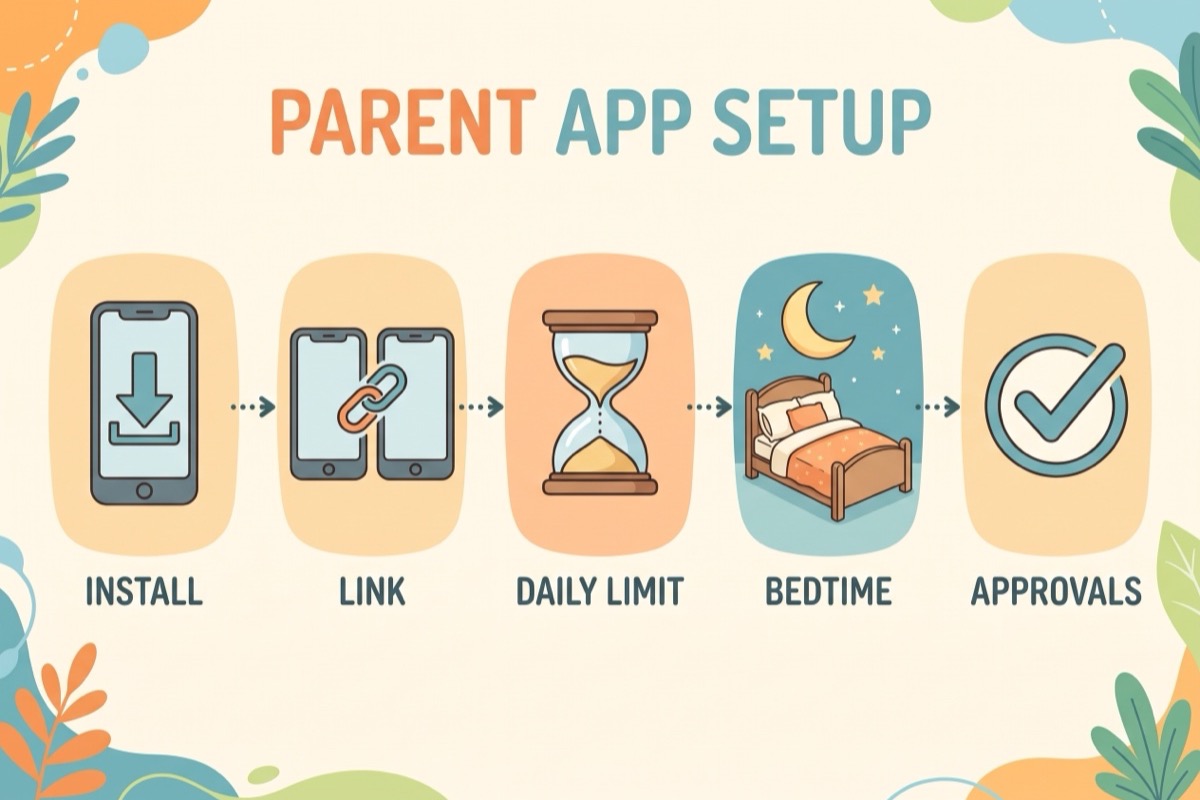
Step 2: Check Your Child's Screen Time From Your Phone
This is the view most parents are actually after. It runs in Family Link, on your phone, and nobody has to hand anything over.
- Open the Family Link app.
- Select your child at the top left.
- Tap "Screen time" at the bottom left.
According to Google's Family Link screen time page, the tracking covers apps across all of your child's Android and Chrome OS devices, not only one phone. If there is a tablet or a Chromebook in the mix, it counts too.
A suggestion for week one: set nothing. Just look, once a day. You will see which apps take most of the time, and when. That makes every limit after this easier to explain, and it gives you a calmer opening line than "you're always on that thing."
Step 3: Set a Daily Screen Time Limit
- In Family Link, select your child, then tap "Screen time" and "Time limits."
- Turn on "Daily limit."
- Tap "Weekly schedule," pick a day and enter the allowed screen time.
- Tap "Apply to all days of the week" to use the same limit every day, or repeat for each day to build a custom week.
The per-day option is the useful one. School nights and Saturdays are different animals, and one number for both usually ends up wrong on one of them. How many minutes to type in is a family call. The American Academy of Pediatrics' current guidance moves past a single numeric cutoff toward quality, context and conversation. Our recommended screen time by age guide walks through what the guidelines do and do not say.
Step 4: Set a Bedtime With Downtime
If you only set one thing tonight, make it this. A bedtime that the phone keeps is a bedtime you do not have to announce from the hallway.
- In Family Link, go to "Screen time," then "Schedules."
- Turn on "Downtime."
- Choose "Tonight" for a one-off, or "Weekly schedule" for a recurring bedtime.
- Set the start and end times and tap "Done."
- Optional: tap "Allowed Apps" to keep specific apps usable during Downtime.
During an active Downtime schedule, other limited apps become unavailable. Your child can still call and text, as long as the messaging app is marked as allowed, per Google's Downtime help page. That is a sensible default: they can reach you, you can reach them, and the game is closed for the night.
Step 5: Limit One App Without Limiting Everything
Sometimes the problem is not the phone. It is one app. An app limit caps that app without touching the others.
- In Family Link, go to "Screen time," then "Time limits," then "App limits."
- Choose the app.
- Tap "Set limit" and enter the hours and minutes.
Two conditions, per Google's app limits page: this needs Android 7.0 or later (or Chrome OS 83 or later), and system apps cannot be given a limit. If your week-one numbers showed one app eating the evening, this is the tool. If the time is spread thin across ten apps, the daily limit from Step 3 fits better.
Step 6: Require Approval for Downloads and Purchases
A limit on today's apps means less if tomorrow's arrive unannounced. Approvals close that door.
- In Family Link, select your child and tap "Controls," then "Google Play."
- Under "Purchases & download approvals," tap "Require approval for."
- Choose "All content," "Paid content only," "In-app purchases only" or "Never."
For younger kids, "All content" means every new app comes through you first, which is also a natural moment to ask what it is and who they play it with. Older kids can move to "Paid content only" or "In-app purchases only." Google's purchase approvals page explains each option. Games with their own parental settings need a separate pass; our Roblox parental controls guide walks through one of them.
Pixel vs. Samsung: Same Controls, Different Names
The Family Link steps above run on your phone. The menus on the child's phone are where brands part ways.
| What you want | Pixel / stock Android | Samsung Galaxy |
|---|---|---|
| See usage on the phone | Settings > "Digital Wellbeing" | Settings > "Digital Wellbeing and parental controls" |
| Usage breakdown | Dashboard chart: screen time, times opened, notifications | Apps Dashboard by day, hour and app |
| On-device extras | App timers, Focus mode, Bedtime mode | Samsung Kids mode and a Samsung family account, separate from Family Link |
| Family Link support | Android 6.0 or later; app limits need 7.0 | One UI 2.0 or later |
Samsung Kids and the Samsung family account can complement Family Link. We stick with Family Link here because it runs from your phone and covers Chromebooks too.
What Changes at 13 (and Why It Might Not Be 13)
The common story is that the controls switch off at 13. That is not quite how it works, according to Google's page on what happens at 13.
- The age depends on the country. 13 is Google's default minimum age to manage a Google Account without supervision. Many countries set it higher: 16 in Germany, Ireland, the Netherlands and Poland; 15 in France, Denmark and Greece; 14 in Spain, Italy and South Korea. Family Link goes by the applicable age of consent in your country.
- An email arrives, to both of you. At that age, Google emails the parent and the child about updating to a supervised teen account.
- Nothing changes automatically. If neither of you acts on the email, supervision stays as it is.
- You still have a say until 18. A child under 18 needs parent approval to fully remove Family Link supervision.
So the real question is not what Google will do on the birthday. It is what the two of you decide before that email lands. Talk it through a month ahead. Agree what stays (Downtime on school nights is a reasonable one to keep), what loosens, and what becomes theirs to run in Digital Wellbeing. A teen who helped write the new rules has less reason to spend the week after the birthday looking for a way around them.
What to Switch On by Age
A starting point, not a prescription. Move your child up or down a row based on how they handle it, not on the birthday alone.
| Age | In Family Link | On their phone | The family side |
|---|---|---|---|
| 6–9 (tablet or shared device) | Daily limit, Downtime every night, approval for "All content" | Nothing to set; you are the dashboard for now | Screens in shared rooms, rules on the fridge |
| 10–12 (first phone, if there is one) | Daily limit with separate weekend days, Downtime, app limits on the one or two biggest apps, approval for "All content" | Look at their Digital Wellbeing chart together once a week | A written agreement you both sign |
| 13–15 (around the age of consent) | Downtime on school nights, a looser daily limit, approval for "Paid content only" | App timers (and Focus mode on a Pixel) they set themselves | Decide the teen-account question together before the email |
| 16–17 (the handover) | Downtime if you both still want it; approval for "In-app purchases only" or "Never" | Mostly theirs to run | A plan for when and how supervision ends before 18 |
What Kids Work Around, and How to Close It
Kids are not villains for testing a limit; it is roughly their job description. These are setup gaps, and each closes in a minute or a conversation.
- "I changed my own timer." Digital Wellbeing timers live on their phone, and on Android 15 and later a supervised child can use some of those tools directly. Fix: put the limits that matter in Family Link, on your phone.
- Two timers, two answers. A Digital Wellbeing app timer and a Family Link app limit are separate settings, set on different phones. Stack both on one app and you have two numbers to keep in sync. Fix: give limits one home, Family Link, and leave Digital Wellbeing for your child's own tracking.
- The allowed app becomes the everything app. Anything on the Downtime allowed list stays usable all night. Fix: keep that list short. Calls and texts home, and that is it.
- The other device. Family Link covers Android and Chrome OS devices. It cannot supervise iPhones, iPads or computers other than Chromebooks. Fix: set up the Apple devices separately (our iPhone guide has the steps) and agree on a house rule for laptops.
- The system app gap. System apps cannot be given an app limit. Fix: this one goes into the family agreement rather than the settings.
- "It didn't work." Sometimes the setting is fine and the phone has not heard about it yet. Family Link changes generally arrive within about 5 minutes once the device is online. Fix: check the connection before you rebuild the whole setup.
Settings Are Not the Whole Answer
Every setting above is a fence. None of them explains why the fence is there, and a 12-year-old who does not know why will spend real creative energy looking for the gate.
The American Academy of Pediatrics' family-media guidance, updated June 3, 2026, makes the same point from the medical side. It moves "beyond simple screen-time limits" and puts the weight on quality, context and conversation rather than one number. The AAP also says studies do not point to a specific age that is safe for a first phone. It suggests weighing how well your child understands the digital world before handing one over.
In practice, that means a short family agreement next to the settings. Keep it to what fits on one page:
- When screens are on and when they are off (the Downtime hours, in words).
- What comes first: homework, the chore, then the phone.
- Where phones sleep at night.
- What happens when the daily limit runs out: no bargaining at zero, and one agreed way to ask for extra time ahead of time.
- When you will review it together. Once a month is plenty.
Then put it where they can see it. A chart on the fridge is easier to argue with calmly than a parent in the doorway, mostly because the chart does not sigh. That is the idea behind Family Checklist: the rules become a daily checklist kids tick off themselves, and the phone becomes the last box instead of the opening argument. If evenings already feel like a tug-of-war over the phone, our guide to screen addiction in kids covers the signs worth watching and how to reset the loop.
Key Takeaways
- Android has two screen time systems. Digital Wellbeing on the child's phone is a mirror; Family Link on yours is the lock.
- Check from your own phone. Family Link, your child, then "Screen time" shows usage across all their Android and Chrome OS devices.
- Start with Downtime. A bedtime the phone enforces, with calls and texts kept open if you allow them, takes the bedtime fight off your plate first.
- Samsung renames the menu. Look for "Digital Wellbeing and parental controls," and check for One UI 2.0 or later.
- 13 is a conversation, not a switch. The age varies by country, nothing changes automatically, and removing supervision before 18 needs your approval.
- Settings need an agreement. The AAP's 2026 guidance favors context and conversation over one number. Write the rules down where kids can see them.
Frequently Asked Questions
How do I check screen time on my child's Android phone?
Knowing how to check screen time on Android starts with picking the right place. On the child's phone, open Settings and tap "Digital Wellbeing" (on Samsung, "Digital Wellbeing and parental controls"). From your own phone, open Family Link, select your child at the top left and tap "Screen time" at the bottom left. Family Link covers all of their Android and Chrome OS devices.
Is Digital Wellbeing the same as Family Link?
No. Digital Wellbeing is the usage view and timers on the child's own phone, and on Android 15 and later a supervised child can use some of its tools directly. Family Link is the parent's app for remote controls: daily limits, Downtime, app limits and download approvals. Use Family Link for the limits you want to hold.
Why is the menu called "Digital Wellbeing and parental controls" on my Samsung?
That is Samsung's name for the same area; Pixel and stock Android call it "Digital Wellbeing." On a Galaxy you can start Family Link setup there: tap "Parental controls," then "Let's do this," and sign in with your child's Google Account. Galaxy devices need One UI 2.0 or later.
Can my child still call or text during Downtime?
Yes, if the messaging app is on the allowed list. In Family Link, go to "Screen time," then "Schedules," and tap "Allowed Apps" to choose what stays usable. Other limited apps become unavailable until Downtime ends.
Can Family Link control an iPhone or iPad?
No. Family Link cannot supervise iPhones, iPads or computers other than Chromebooks. In a mixed-device family, use Family Link for the Android and Chrome OS devices and set up the Apple ones separately.
What happens to Family Link when my child turns 13?
Less than the rumor suggests. Google emails both of you about updating to a supervised teen account. That happens at 13, or at the higher age of consent in many countries (16 in Germany, 15 in France, 14 in Spain). Nothing changes automatically if neither of you acts, and a child under 18 still needs your approval to fully remove supervision.
Related Reading
- Parental Controls on iPhone: A 15-Minute Setup for Kids (2026)
- Recommended Screen Time by Age: What the Guidelines Say (2026)
- Roblox Parental Controls: A Parent's Setup Guide (2026)
- Screen Addiction in Kids: 9 Signs and How to Break the Loop (2026)
- What Age Should a Child Get a Phone? A Readiness Checklist (2026)
- Social Media Age Limits: The Main Apps, Laws and Countries (2026)
Turn your screen rules into a checklist they can see
Family Link sets the limits. A chart explains them. Our free maker turns your screen rules into a daily checklist kids tick off before the phone comes out. Printable, no signup.
Make a free screen rules chart
