Parental Controls on iPhone: A 15-Minute Setup for Kids (2026)
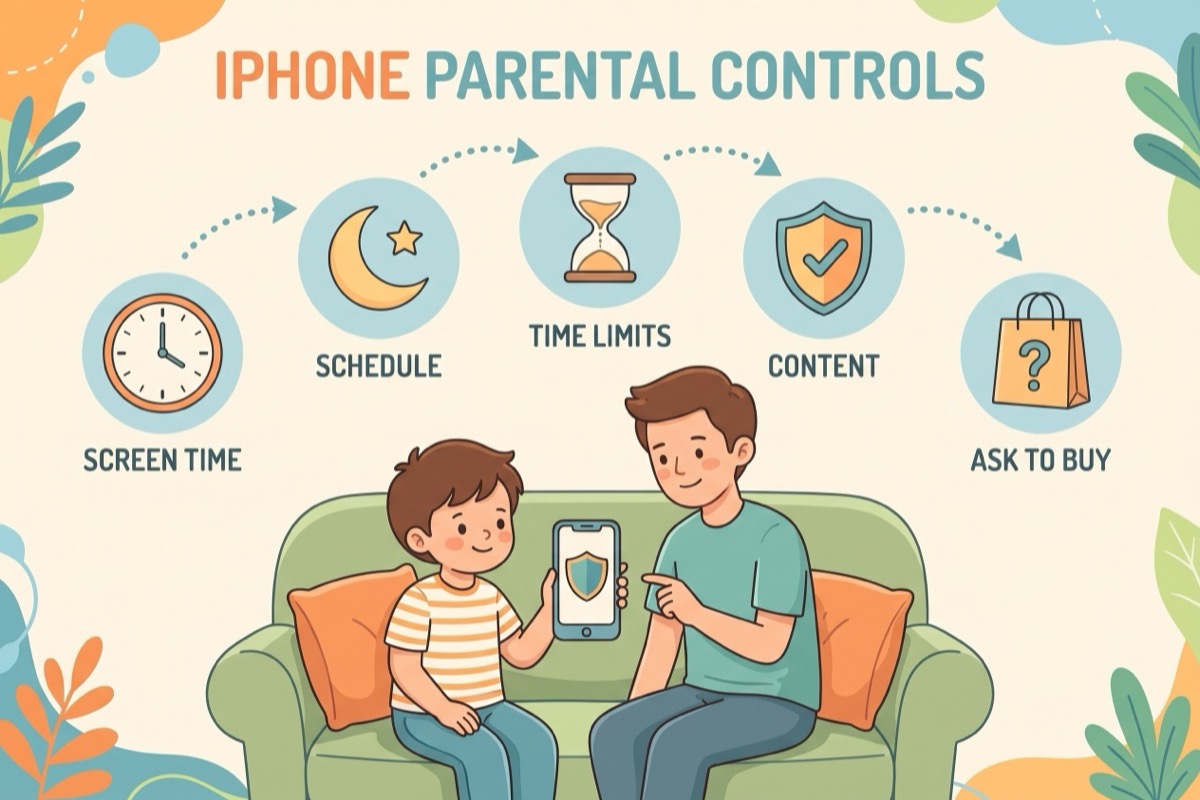
Parental controls on iPhone got simpler this fall, and also a little confusing. With iOS 27, Apple moved every child setting into one place, Settings > Family > [child's name], and gave two of the best-known controls new names. If you last set this up a couple of years ago, or you are following a guide written before September, the menu paths will not match your screen.
Quick answer: set up Family Sharing, create a Child Account and update every device in the family group. Then open Settings > Family > [child's name] and work down the list: Apps & Websites, Allowed Contacts, Communication Safety, Screen Time Schedule, Time Allowances, and Content & Privacy Restrictions.
This is the one-sitting version: the order that works, Apple's exact menu paths, what to switch on from age 6 to 17, and the gaps kids find. If Family Sharing and your child's account already exist, it takes about 15 minutes. If you suspect you could be doing this better, you have company. In a Pew Research Center survey of parents of kids 12 and under, 42% said they could be doing a better job managing screen time. Settings alone will not fix that, so this guide ends with a family agreement, not a toggle.
Before You Start
Every parental control on the iPhone hangs off Family Sharing. No family group, no controls from your own phone. Do these four things first, in this order.
- Set up Family Sharing. On your iPhone: Settings > tap your name > Family > Continue, then follow the on-screen instructions. The organizer has to be an adult, and the group can hold up to five other members, each with their own Apple Account (Apple: Family Sharing).
- Create a Child Account if your child does not have one. Settings > Family > tap the Add Member button > Create Child Account > Continue. Enter your child's name and correct birthday, then pick an email address, the suggested @icloud.com address, or a Game Center nickname (Apple: create a Child Account). Get the birthday right. Several defaults below depend on your child's age.
- Add yourself to your child's Contacts. Add the other parent or guardian too, so your child's requests have somewhere to go.
- Update every device in the family group. The new menus appear only when every device in Family Sharing runs iOS 27, iPadOS 27, macOS 27, watchOS 27 or visionOS 27. After updating, open the parental controls again to trigger the switch to the new layout (Apple: use parental controls).
Add a second parent. The organizer can make another adult in the group a parent or guardian: Settings > Family > [member's name] > Set as Parent/Guardian. Then either of you can approve a request, which helps when one of you is in the shower.
Check your country's age cutoff. Apple requires parents to create the account for children under 13 in most countries (Apple: age requirements by region). Some places set it higher, including under 14 in Austria and South Korea, under 15 in France, under 16 in Germany and Ireland, and under 18 in Brazil and Texas. Where the law requires it, a child's account under 18 must stay in a Family Sharing group.
Have your Screen Time passcode ready. Some screens below ask for it. It is separate from the code that unlocks the phone. Our Screen Time passcode guide covers setting, changing and resetting it.
On an older iOS? If one device in the family cannot update, you can keep using the previous version of Screen Time, or change settings directly on your child's device. In that older layout the path starts at Settings > Screen Time > Family > [child's name]. Screen Time Schedule is still called Downtime there, Time Allowances is still App Limits, and older guides file the contact controls under Communication Limits. Everything below uses the iOS 27 names.
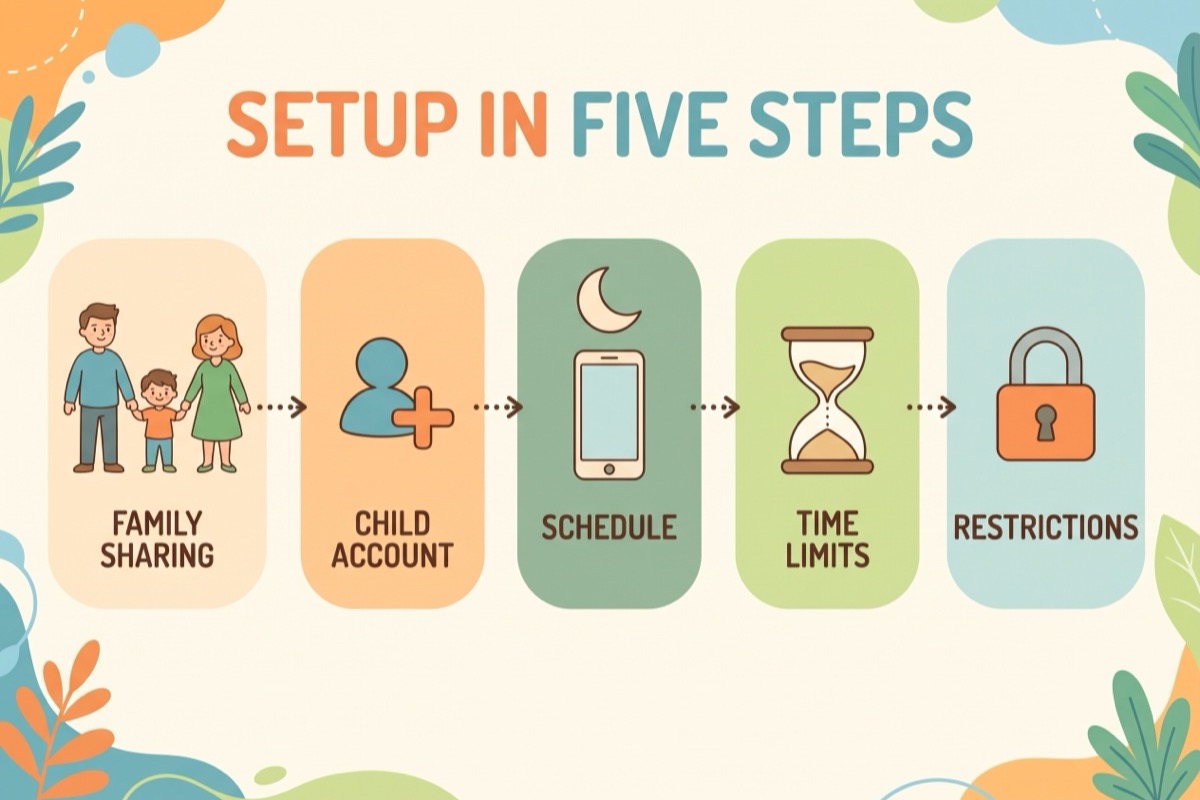
Step 1: Approve Purchases With Ask to Buy
Ask to Buy sends you a notification each time your child tries to buy or download something eligible. It is on by default for children under 13, so for a younger child this step is mostly a check.
- Open Settings > Family > [child's name] > Apps & Websites. Enter your Screen Time passcode if asked.
- Tap Restrictions > Ask to Buy.
- Turn on Require Purchase Approval.
Two details catch parents out. First, requests expire: if nobody approves or declines within 24 hours, your child has to send the request again (Apple: Ask to Buy). Second, Ask to Buy is not a full purchase lock. Re-downloading something your child already bought, app updates and redemption codes do not trigger a request.
Since iOS 26, your child can also send a request for an exception to an app or content restriction, for example an app rated above the limit you set. You can approve it, decline it, or revoke it later. In some places the basics are not optional. Under local age-verification laws in Texas, Australia, Singapore, South Korea and the UK, Ask to Buy and some Screen Time protections are locked on for some under-18 accounts. In Texas this covers new accounts created on or after June 4, 2026, and even a parent cannot turn them off (Apple: Texas requirements).
Step 2: Filter the Web and Turn On Ask to Browse
Two defaults already help: Ask to Browse is on for children under 13, and Limit Adult Websites is on for children under 18. Check them, then decide how tight to go.
- Open Settings > Family > [child's name] > Apps & Websites > Restrictions.
- Under Websites, tap Filtering.
- Choose Limit Adult Websites, or choose Approved Websites Only, so every new site goes through Ask to Browse and waits for your approval.
Approved Websites Only is a good fit for a 6-year-old and a daily argument with a 14-year-old doing a history project. The age table below splits the difference.
Step 3: Allow or Block Specific Apps and Websites
- Open Settings > Family > [child's name] > Apps & Websites.
- Tap Allowed or Blocked to see the current lists.
- To block something, select the app or website, then tap Block App or Block Website.
A blocked app is not deleted. It stays on the Home Screen, dimmed. It reads as "not now" rather than "gone forever," and nothing is lost if you change your mind.
Step 4: Choose Who Your Child Can Talk To
This step has three parts, and all three are worth the extra minute.
- Allowed Contacts. Settings > Family > [child's name] > Allowed Contacts > During Screen Time. Choose Contacts Only, Contacts & Groups with at Least One Contact, or Everyone.
- The contact list itself. In Allowed Contacts, turn on Manage Contacts. Leave Allow Contact Editing off unless you want your child to add new contacts without asking you.
- Communication Safety. Settings > Family > [child's name] > Communication Safety, then turn on Communication Safety.
Communication Safety looks at photos and videos in Messages and FaceTime for nudity and blurs what it flags. On iOS 27 it also detects gore and violence. The analysis happens on your child's device, so Apple does not see the content and is not notified when something is flagged (Apple: Communication Safety). For a child under 13, opening a blurred item takes a parent entering the Screen Time passcode on the child's device. It is the rare control that protects a kid without anyone reading over their shoulder.
Step 5: Set the Screen Time Schedule and Time Allowances
These two do different jobs. Screen Time Schedule blocks apps and notifications during the hours you pick. Time Allowances set a daily time budget per app category, so one category can run out while the rest of the phone keeps working.
- Screen Time Schedule: Settings > Family > [child's name] > Screen Time Schedule. Turn on Schedule, tap Add Schedule, and pick the days.
- Time Allowances: Settings > Family > [child's name] > Time Allowances. Tap the Add button and follow the prompts.
A practical order: schedule first, because nights and school hours are the easiest rules to agree on, then allowances only for the category that keeps eating the afternoon. How many minutes is its own question, and the pediatric answer changed this year; see our recommended screen time by age guide.
Step 6: Content & Privacy Restrictions
This is the long menu, and a lot of it can stay as it is. Four parts are worth a look.
- Age ratings. Settings > Family > [child's name] > Content & Privacy Restrictions (enter the passcode if asked) > Content Restrictions. Pick a category, such as apps, music, books, movies or TV, then choose Don't Allow, Unrated, Allow All, or a specific age rating.
- Siri. In Content & Privacy Restrictions, tap Siri, pick a category such as Writing Assistance or Image Creation, and set it to Allowed or Blocked.
- Game Center. This one lives in a different menu: Settings > Family > [child's name] > Apps & Websites > Restrictions, then scroll to Game Center. Settings such as Connect with Friends and Private Messaging can each be Allowed or Blocked.
- Privacy Restrictions. In Content & Privacy Restrictions, scroll to Privacy Restrictions, pick a category such as Camera or Contacts, and choose Allow or Don't Allow.
One more is already on: Screen Distance, an eye-strain nudge that is on by default for eligible child accounts. Leave it there.
Parental Controls on iPhone by Age: What to Switch On
Apple's defaults are built around two birthdays, 13 and 18. Kids change faster than that, so here is a starting point by age band. Treat it as a draft, not a rulebook, and loosen one row at a time.
For many families the middle band is when the phone arrives. In the same Pew survey, 68% of parents said kids should generally be at least 12 before getting their own smartphone. Yet roughly six in ten parents of an 11- or 12-year-old said their child already has one. If you are still deciding, our phone readiness checklist helps with the "when."
| Setting | Ages 6–9 | Ages 10–12 | Ages 13–15 | Ages 16–17 |
|---|---|---|---|---|
| Ask to Buy | On (default) | On (default) | On | Your call, unless local law locks it on |
| Filtering | Approved Websites Only | Approved Websites Only, moving to Limit Adult Websites | Limit Adult Websites | Limit Adult Websites (default) |
| Allowed Contacts, During Screen Time | Contacts Only | Contacts Only | Contacts & Groups with at Least One Contact | Your call |
| Manage Contacts | On, Allow Contact Editing off | On, Allow Contact Editing off | On | Optional |
| Communication Safety | On | On | On | On |
| Screen Time Schedule | Nights, school hours, meals | Nights and school hours | Nights | Nights, agreed together |
| Time Allowances | On for every category they use | On for the one or two they overdo | On for the one they overdo | Optional |
| Content Restrictions | The rating for their age | The rating for their age | The rating for their age, exceptions by request | Loosen as trust builds |
| Siri (Writing Assistance, Image Creation) and Game Center Private Messaging | Blocked | Blocked | Your call | Allowed |
Communication Safety is the only row that stays the same across all four bands. The check runs on the device and Apple never sees the content, which makes it the easiest setting to leave on at 17.
What Kids Work Around, and How to Close It
Common Sense Media puts it plainly: kids can undo parental controls, and "the directions on how to get around them are easily available on the internet." That is not a reason to skip the settings. It is a reason to know the soft spots, which come straight from how the settings work.
- The Screen Time passcode. Every setting above sits behind it. If your child knows it, they can change the settings themselves. Do not reuse the phone's unlock code, and change the Screen Time passcode if you think it has leaked.
- Allow Contact Editing. When it is on, your child can add new contacts without asking, which makes Contacts Only a lot less "only." Keep it off for younger kids.
- Old purchases, updates and codes. Re-downloads of past purchases, app updates and redemption codes skip Ask to Buy. If a specific app is the problem, use Block App instead of counting on Ask to Buy.
- Exceptions you forgot about. An exception you approved can be revoked later, so look at what you have approved once a term and take back what no longer fits.
- Game Center messaging. Game Center has its own messaging switch. Set Private Messaging to Blocked for younger kids.
- A device that was never updated. An old iPad on an older iOS keeps the whole family on the previous version of Screen Time. Update it, or plan to manage settings on your child's device directly.
Notice what is not on the list: a setting that stops a determined teenager for good. There isn't one. Common Sense Media recommends pairing controls with an ongoing conversation rather than "set it and forget it," and that is the next section.
Settings Are Not the Whole Answer
The American Academy of Pediatrics' current media guidance, updated in June 2026, no longer centers on a single daily number. It describes a "digital ecosystem": TV and movies, social media, gaming, digital assistants, smartphones, apps, AI tools and podcasts. It points families to its free Family Media Plan tool to set their own rules.
In the Pew survey, 67% of parents said tech companies should do more to set rules around what kids can do or see online. Fair enough. But a phone can only enforce what is in its settings. The rules that shape a family's evenings (where phones sleep, whether they come to dinner, what happens before games) are made at home.
Our suggestion: keep the rules short and visible. Four or five of them, written with your child, posted where everyone sees them, and matched to the settings you just switched on. The Screen Time Schedule enforces the bedtime rule; the chart on the fridge explains it. When the rule and the setting agree, the phone stops being the bad guy, and so do you. That is what we built Family Checklist for: turning "phones in the kitchen at 8:30" into a daily checklist your kids can see and tick off. If screens already feel like more than a habit, our guide to screen addiction in kids is a calm place to start.
Key Takeaways
- iOS 27 put every child setting under Settings > Family > [child's name]. Every device in the family group needs the update before the new menus appear.
- Set up in order. Family Sharing and a Child Account come first.
- Defaults do real work under 13. Ask to Buy and Ask to Browse are on, and Limit Adult Websites stays on until 18.
- Turn on Communication Safety at every age. It runs on the device, and Apple does not see what it flags.
- Ask to Buy has gaps. Re-downloads, updates and redemption codes skip it, and requests expire after 24 hours.
- Kids can undo controls. Guard the Screen Time passcode and pair the settings with a written family agreement.
Frequently Asked Questions
How do I set up parental controls on iPhone for my child?
Set up Family Sharing, then create a Child Account under Settings, Family, Add Member. On iOS 27, every control lives under Settings, Family, your child's name. Ask to Buy and web filtering are in Apps & Websites, and the same screen lists Allowed Contacts, Communication Safety, Screen Time Schedule, Time Allowances and Content & Privacy Restrictions. Every device in the family group needs the version 27 update first.
What age counts as a child for an Apple Child Account?
In most countries, parents must create the Apple Account for children under 13. Some places set it higher, including under 14 in Austria and South Korea, under 15 in France, under 16 in Germany and Ireland, and under 18 in Brazil and Texas. Enter your child's correct birthday, because several defaults depend on it.
Can kids get around iPhone parental controls?
Yes. Common Sense Media notes that kids can undo parental controls and that instructions are easy to find online. Keep the Screen Time passcode different from the unlock code, leave Allow Contact Editing off for younger kids, and pair the settings with a family agreement your child helped write.
Does Ask to Buy catch every purchase?
No. It covers new eligible purchases and downloads, but re-downloads of things your child already bought, app updates and redemption codes do not trigger a request. A request also expires if nobody approves or declines it within 24 hours, and your child has to send it again.
Does Apple see what Communication Safety flags?
No. Communication Safety analyzes photos and videos on your child's device, so Apple does not see the content and is not notified when something is flagged. On iOS 27 it detects gore and violence as well as nudity. For a child under 13, viewing a blurred item requires a parent to enter the Screen Time passcode on the child's device.
Can both parents approve a child's requests?
Yes. The Family Sharing organizer can make another adult in the group a parent or guardian through Settings, Family, the member's name, Set as Parent/Guardian. After that, either adult can approve or decline requests.
Related Reading
- Screen Time Passcode: Set, Change or Reset It Without Drama (2026)
- Recommended Screen Time by Age: What the Guidelines Say (2026)
- What Age Should a Child Get a Phone? A Readiness Checklist (2026)
- Screen Addiction in Kids: 9 Signs and How to Break the Loop (2026)
- How to Check Screen Time on Android and Limit It for Kids (2026)
Turn your screen rules into a checklist your kids can see
The settings enforce the rules. A chart explains them. Add your kids, pick the rules you agreed on, and print it for the fridge or use it in the app. Free, no signup required.
Make a free screen rules chart
