Screen Time Passcode: Set, Change or Reset It Without Drama (2026)
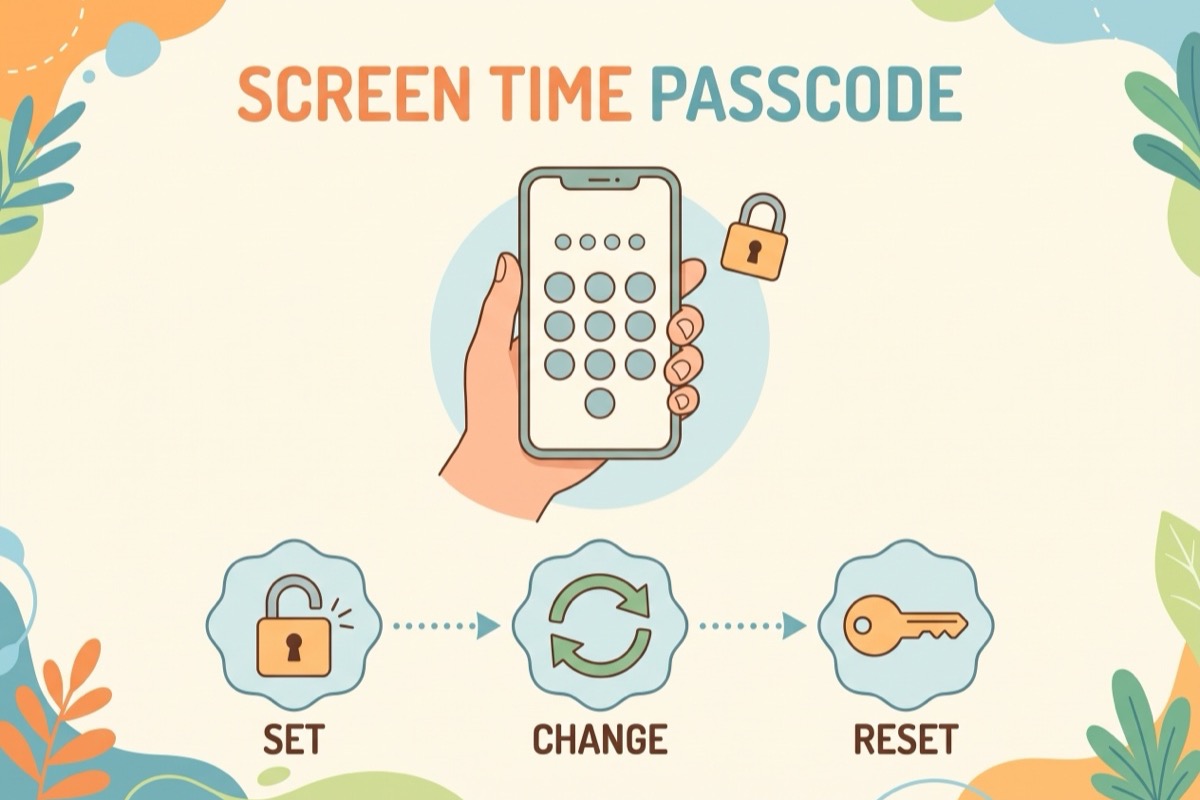
A screen time passcode is four digits that decide who runs the iPad. It is not the code that unlocks the device. It is a separate one, and you need it to change any Screen Time setting, limit or restriction. Set it well and the rules hold without a nightly negotiation. Set it badly, say your birthday typed in front of a curious eight-year-old, and it holds until they next watch you type.
The short version: set it in Settings > Screen Time. If you forget it, reset it with the Apple Account you used when you set it up. With Family Sharing, you do both for your child's device from your own phone. Below is the parent side in full: setting, changing, resetting, and closing the gaps kids find. Every menu path comes from Apple's support pages, checked in September 2026. No spyware, no unlock tools. Our 15-minute iPhone parental controls setup covers the settings themselves; this piece is about the lock on them.
Before You Start
A little prep saves the evening you get locked out of your own rules.
- The Screen Time passcode is not your device passcode. Apple is explicit that it is a separate code. Don't reuse your phone's unlock code, and skip birthdays. Kids know which numbers their parents love.
- One passcode covers everything. Content & Privacy Restrictions (age-based content ratings, Siri, Game Center, privacy permissions) sit behind the same Screen Time passcode, per Apple's parental controls guide.
- Family Sharing makes this remote. To set or reset your child's passcode from your own phone, Family Sharing needs to be set up. You each also need to be signed in with your own Apple Account. Where the law requires it, an Apple Account for a child under 18 has to be part of a Family Sharing group anyway.
- Check which software you are on. iOS 27, iPadOS 27 and macOS 27 bring a new parental controls experience. It applies only once every device in the Family Sharing group is updated and the organizer updates the family's parental controls. Families who can't update everything keep the previous Screen Time version. So you may see two menu routes, and both are correct.
- Decide where the code lives. Apple's own Mac User Guide suggests storing the Screen Time passcode somewhere safe, such as a locked Notes entry. Not a sticky note on the fridge. Not the kitchen whiteboard.
Everything here is Apple. For an Android phone, see our Android screen time guide for kids.
Step 1: Set a Screen Time Passcode on Your Child's Device
The cleanest setup is the one you never do on your child's phone at all. With Family Sharing in place, you set the passcode from your own iPhone or iPad, following Apple's setup steps:
- On your own device, open Settings and tap Screen Time.
- Scroll down and tap your child's name under Family.
- Tap Manage Screen Time.
- Tap Lock Screen Time Settings.
- Enter a four-digit passcode, then enter it again to confirm.
On iOS 27, Apple's pages also show a newer route that starts at Settings > Family > your child's name. If your menus look like that, start there. If they match the list above, you are on the previous Screen Time experience, which is fine.
Once the passcode is set, you get a notification any time it is used on your child's device. Tell your kid that, as a plain fact of the setup. Knowing a ping lands on your phone takes the fun out of guessing.
No Family Sharing, and your teen has their own iPhone
If you have no Apple device and your child is 13 to 17 with their own iPhone or iPad (where allowed), Apple's guide gives a path on the teen's device:
- Open Settings and tap Screen Time.
- Tap App & Website Activity, then Turn On App & Website Activity.
- Scroll down and tap Lock Screen Time Settings.
- Enter a 4-digit passcode twice.
The catch: on this route, passcode recovery may end up tied to your teen's own Apple Account rather than yours. More on that in Step 4.
Step 2: Lock a Shared iPad and Add Passcode Recovery
Plenty of younger kids don't have their own device. They have yours, or the family iPad that is technically yours. Then you lock your own device, per the iPhone User Guide:
- Open Settings and tap Screen Time.
- Tap Manage Screen Time, then Lock Screen Time Settings.
- Enter a four-digit passcode, then enter it again to verify it.
- Add Screen Time Passcode Recovery: enter the email address or phone number and password for your Apple Account.
The steps are identical on iPad, down to the wording, according to the iPad User Guide. Don't skip the last step. Apple recommends it so you can reset the code later if you forget it, and without it you are relying on memory on a tired school night.
Two rules from Apple's recovery page are worth knowing. With more than one Apple Account, you must use the same one you entered at setup. And if you can't remember which one that was, you won't be able to reset or remove the passcode, and Apple "won't be able to provide that information." Write the account name next to the code.
Step 3: How to Change a Screen Time Passcode
Change the code when you suspect it has been seen, after a sitter or grandparent has used it, or at the start of a school year. Yes, you tap the same button twice.
On your own iPhone or iPad
- Open Settings and tap Screen Time.
- Tap Change Screen Time Passcode, then tap Change Screen Time Passcode again.
- Enter your current passcode.
- Enter a new four-digit passcode and confirm it.
On your child's device, from your phone
- On your own device, open Settings and tap Screen Time.
- Scroll down and tap your child's name under Family.
- Tap Manage Screen Time.
- Tap Change Screen Time Passcode twice.
- Enter a new passcode and confirm it.
On a Mac
In System Settings, click Screen Time in the sidebar. For yourself, scroll down and click Change Passcode. For a child, pick them from the Family Member pop-up menu, scroll down, click Manage Screen Time, then Change Passcode. The Mac accepts the current passcode or your Mac password or Touch ID, handy when the old code has left your head.
Turning it off
- Open Settings and tap Screen Time.
- Tap Change Screen Time Passcode, then Turn Off Screen Time Passcode.
- Enter the current passcode.
Do this on purpose, not in a tired moment: say, an older teen taking over their own settings under a deal you both agreed to.
Step 4: Forgot the Screen Time Passcode? How to Reset It
It happens. You set it in August, nobody needed it until November, and the four digits are gone. Which recovery path you use depends on whose passcode it is.
Your child's passcode
With Family Sharing, Apple says the organizer or a parent or guardian must reset it from their own device, not the child's:
- On your device, open Settings and tap Screen Time.
- Scroll down and tap your child's name under Family.
- Tap Manage Screen Time, then tap Change Screen Time Passcode twice.
- Enter a new passcode and confirm it.
Apple's steps for a forgotten child passcode don't ask for the old one.
Your own passcode
- Open Settings, tap Screen Time, then Manage Screen Time.
- Tap Change Screen Time Passcode, then tap it again.
- If asked, enter the Apple Account email address and password you used to set up the passcode.
- Enter a new passcode and confirm it.
If Share Across Devices is turned on, the reset carries over automatically to the other devices in your Family Sharing group.
When the reset doesn't work
Apple's troubleshooting advice points at the account. Use the same Apple Account email and password that set up the passcode, which may not be the one signed in on the device now. It could be another family member's, or your child's own. Try each plausible one before assuming the worst.
What not to do
- Don't buy a "passcode remover." Tools marketed to strip the passcode typically work by extracting or wiping a device backup. Apple doesn't endorse any of them, they carry real data-loss and privacy risk, and Apple Account recovery makes them unnecessary.
- Don't factory reset in frustration. It wipes anything not backed up, and with Find My on, Activation Lock asks for the Apple Account password before anyone can erase the device and use it again. You need the account details either way.
What to Switch On by Age
The passcode is the lock; here is what matters behind it at each age. Apple turns some of it on by default, per its parental controls setup page. Ask to Buy and Ask to Browse are on for children under 13, and Limit Adult Websites for children under 18. The rest is your call.
| Age | Where the passcode is set | Switch on or keep on | Who knows the code |
|---|---|---|---|
| 6–9 | From your phone via Family Sharing, or on your own device if they borrow yours | Ask to Buy, Ask to Browse and Limit Adult Websites (on by default at this age). Content & Privacy Restrictions set to age-based ratings | Parents only. The child knows a code exists and why |
| 10–12 | From your phone via Family Sharing | The same defaults apply to under-13s. Read the notifications you get when the passcode is used | Parents only. Anyone else who uses it means a new code afterward |
| 13–15 | From your phone, or on their device via App & Website Activity if you have no Apple device | Apple's default-on for Ask to Buy and Ask to Browse covers under-13s, so check both yourself. Limit Adult Websites stays on by default | Parents. Check which Apple Account holds the passcode recovery |
| 16–17 | Same as 13–15 | Limit Adult Websites on by default until 18. Agree which settings stay locked and which your teen manages. In some states, countries or regions, some settings can't be turned off at all | Parents, with a date to review the deal |
What Kids Work Around, and How to Close It
Kids are not trying to hack you. Mostly they are trying to finish the level. Here are the gaps worth closing.
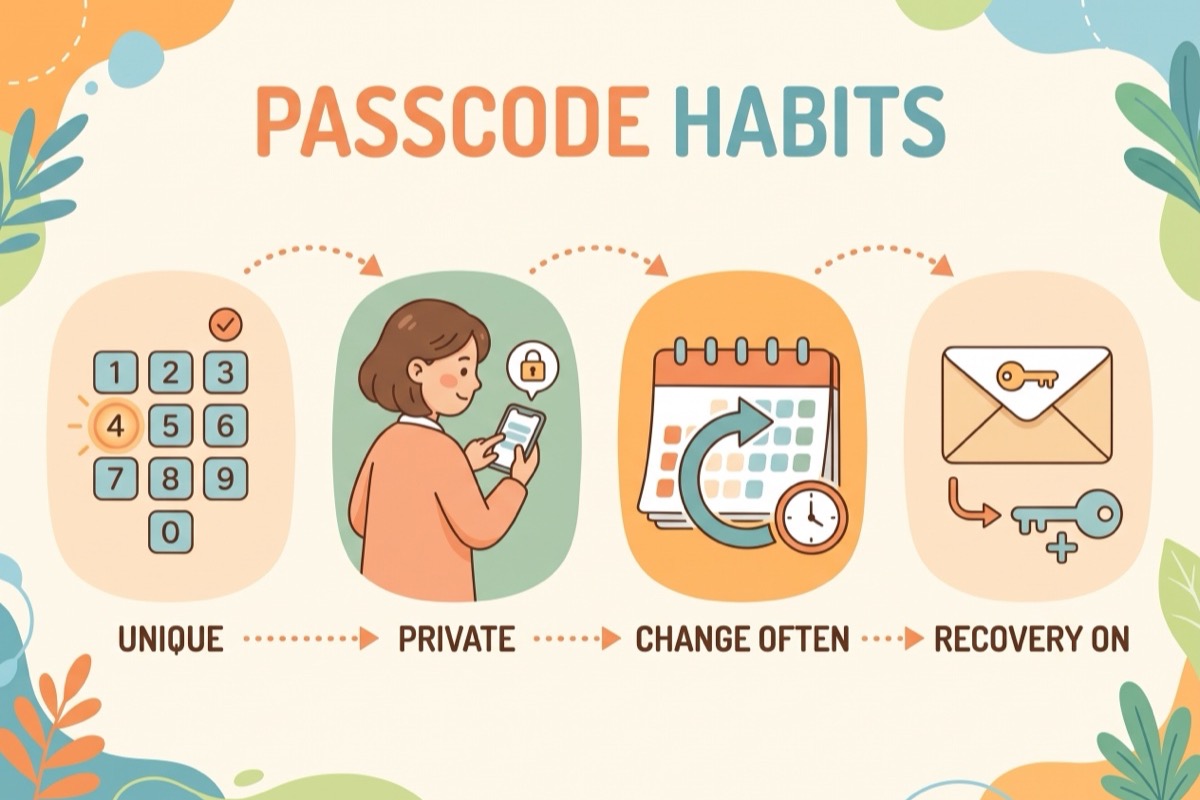
- They watched you type it. Four digits typed at the dinner table don't stay secret. Type with the screen turned away and change the code the moment you suspect it was seen. Since you get a notification whenever it is used on their device, a mysterious extra hour tends to announce itself.
- They guessed it. Birthdays, the device code, the house number. Choose digits with no story attached.
- Someone else gave it out. A grandparent, a sitter, an older sibling asked to "just add a bit more time." Agree on who holds the code, and change it after anyone outside that circle has used it.
- The recovery account is theirs. On a teen's device set up without Family Sharing, recovery may be tied to the teen's Apple Account, and whoever holds that account can reset the code. With Family Sharing, the reset has to come from a parent's or organizer's device, which closes this one.
- The factory reset plan. With Find My on, Activation Lock requires the Apple Account password before the device can be erased and set up again. Without it, a reset hands nothing back and wipes anything they haven't backed up. If your teen knows the password for the Apple Account on the device, this lock won't stop them.
- The old forum tricks. Changing the date and time to end Downtime early, or old Siri workarounds, still circulate online. Some third-party sites say Apple has patched them, and Apple has not confirmed either way. If limits suddenly stop working, ask calmly how. A plain question beats a forensic audit of the settings app.
- An older device in the house. On a Mac, Screen Time Passcode Activity shows when your child's passcode was last used and on which device. It only appears once they have used it on macOS 15.5, iOS 18.5, iPadOS 18.5 or later. Older hand-me-downs won't show up, so update them where you can.
Settings Are Not the Whole Answer
A screen time passcode keeps the rules from being edited. It doesn't make the rules make sense to a ten-year-old. If the only explanation a kid gets is a grey screen asking for four digits, the passcode becomes the villain of every evening.
The fix is boring, which is why it holds up: a short family agreement that sits next to the settings. Write down, in plain words:
- When screens are on and when they are off, in the same terms as the Screen Time settings.
- Where devices sleep at night.
- Who knows the passcode, and what happens if someone else learns it. (It changes. No drama.)
- How a kid asks for more time, and who answers.
- When the deal gets reviewed. Birthdays are a natural moment.
Not sure what the limits should be? Our recommended screen time by age guide sums up the guidelines. If evenings feel bigger than a settings problem, signs of screen addiction in kids helps you tell a sticky habit from something that needs more attention.
Here we are openly biased, because we build Family Checklist. A chart the kids can see, with screen rules as daily checkboxes, does the reminding so the passcode doesn't have to. "Homework, then tablet" becomes a line they tick off instead of an argument you have to win.
Key Takeaways
- The Screen Time passcode is separate from the device passcode. It also locks Content & Privacy Restrictions, so there is one code to manage.
- Set it from your own phone with Family Sharing. Settings > Screen Time > your child's name > Manage Screen Time > Lock Screen Time Settings.
- Add Screen Time Passcode Recovery on your own device. Write down which Apple Account you used, because Apple won't be able to tell you later.
- Reset a child's forgotten code from the parent side. A parent's or organizer's device, not the child's.
- Skip passcode removers and angry factory resets. Activation Lock needs the Apple Account password anyway.
- Pair the lock with a written family agreement. The passcode protects the rules; the agreement explains them.
Frequently Asked Questions
What is a Screen Time passcode?
A Screen Time passcode is a separate four-digit code, not the one that unlocks the iPhone or iPad. You need it to change Screen Time settings, limits and restrictions on your own device or your child's. It also locks Content & Privacy Restrictions, so there is only one code to manage.
How do I change the Screen Time passcode on my child's iPhone?
Use your own device, with Family Sharing set up. Open Settings, tap Screen Time, then scroll down and tap your child's name under Family. Tap Manage Screen Time, tap Change Screen Time Passcode twice, then enter and confirm a new passcode. On iOS 27, the route may start at Settings > Family instead.
What should I do if I forgot my Screen Time passcode?
On your own device, go to Settings > Screen Time > Manage Screen Time and tap Change Screen Time Passcode twice. If asked, enter the Apple Account email and password you used when you set the passcode up, then choose a new one. For a child's device, reset it from the parent's or organizer's device. If it fails, try the other Apple Accounts in the family.
Can my child reset the passcode or factory reset the phone to get around it?
With Family Sharing, Apple says the reset has to happen on the organizer's or a parent's device, not the child's. A factory reset is harder than it sounds: with Find My on, Activation Lock asks for the Apple Account password before the device can be erased and used again. That only stops a child who doesn't know the password. The other gap to check is a teen whose passcode recovery is tied to their own Apple Account.
How do I know if my child used the Screen Time passcode?
When a Screen Time passcode is set on a child's device, the parent or organizer gets a notification every time it is used there. On a Mac, Screen Time Passcode Activity shows when the passcode was last used and on which device. It appears once your child has used it on iOS 18.5, iPadOS 18.5, macOS 15.5 or later.
Should I use a third-party app to remove a forgotten passcode?
No. Apple doesn't endorse these tools, and they typically work by extracting or wiping a device backup, which puts your family's data and privacy at risk. Apple's own recovery through your Apple Account is the safer route. Set up Screen Time Passcode Recovery now and note which account you used.
Related Reading
- Parental Controls on iPhone: A 15-Minute Setup for Kids (2026)
- How to Check Screen Time on Android and Limit It for Kids (2026)
- Screen Addiction in Kids: 9 Signs and How to Break the Loop (2026)
- Recommended Screen Time by Age: What the Guidelines Say (2026)
- What Age Should a Child Get a Phone? A Readiness Checklist (2026)
Turn your screen rules into a checklist the kids can see
The passcode locks the settings. A daily chart on the fridge or in the app shows the rules: homework first, devices charge in the kitchen, screens off on time. Free, no signup.
Make a free screen rules chart
